
News · 2026-09-25
Installing Playwright CLI for coding agents with Chrome
A practical setup guide for Microsoft's Playwright CLI: install the CLI, configure agent skills, launch Chrome, and verify browser automation with a minimal agent workflow.
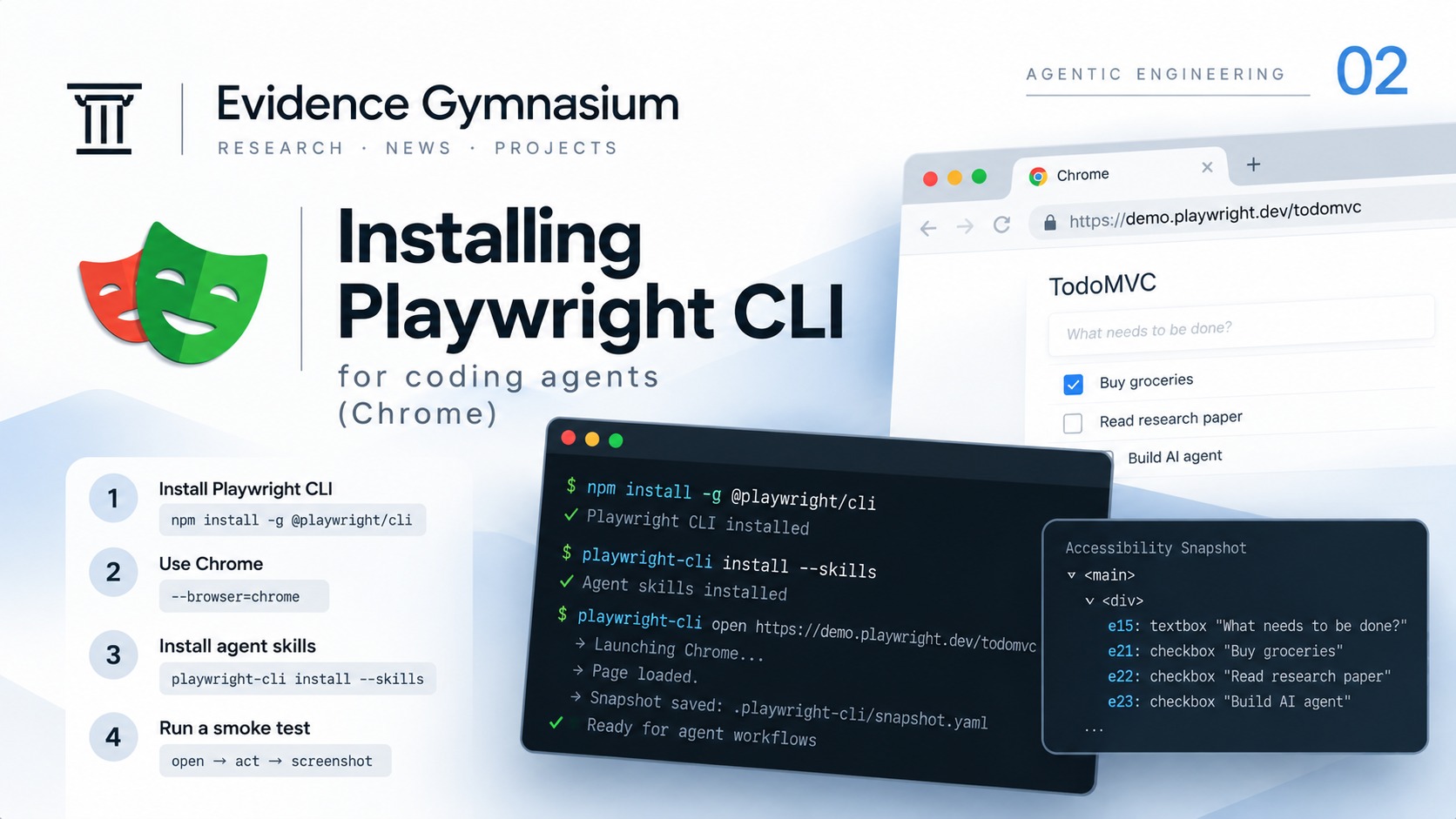
What it is
Playwright CLI is Microsoft's command-line browser automation interface designed for coding agents.
Instead of requiring the model to control the browser primarily through protocol-based tools, the agent can execute concise shell commands:
playwright-cli open
playwright-cli click e15
playwright-cli type "hello world"
playwright-cli screenshot
Page state is exposed through accessibility snapshots containing reusable element references. The result is a relatively simple interaction loop: Inspect → Reference → Act → Verify.
In Agentic Engineering #01 we examined why this architecture can reduce browser-related context overhead. Now we will actually install it.
Prerequisites. Before installing, make sure you have Node.js 20 or newer, npm, a coding agent with shell access, and network access for npm and the initial browser installation. Check Node with:
node -v
This guide uses Chrome as the browser. The same CLI can also work with Firefox, WebKit and Microsoft Edge.
Step 1 — Install Playwright CLI. Install the current CLI globally:
npm install -g @playwright/cli@latest
Then verify that it is available:
playwright-cli --help
If everything is installed correctly, the command should display the available Playwright CLI commands. For a project-local installation, use:
npm install -D @playwright/cli@latest
npx playwright cli --help
This can be preferable when you want the CLI version controlled by the project rather than the developer machine.
Step 2 — Install the browser if necessary. Playwright CLI can download the browser it requires automatically on first use. You can also trigger browser installation explicitly:
playwright-cli install-browser
For environments requiring additional system dependencies:
playwright-cli install-browser --with-deps
This can be useful for fresh development environments, containers or CI machines.
Step 3 — Install agent skills. Playwright CLI can install skills containing structured instructions that teach a coding agent how to use the command surface:
playwright-cli install --skills
playwright-cli install --skills=agents
To make the skills available across projects:
playwright-cli install --skills -g
The default layout is compatible with Claude-style skills, typically at .claude/skills/playwright-cli. For the generic agents layout, use .agents/skills/playwright-cli, or their equivalents in the user's home directory when installed globally.
Skills give the agent structured knowledge about the actual CLI commands. Without them, Playwright CLI can still be used. A useful instruction is simply: use playwright-cli for browser automation, run playwright-cli --help before using commands you are unsure about, and do not invent CLI flags.
Skills improve knowledge of the tool surface. They do not make the agent's reasoning deterministic.
Step 4 — Launch Chrome. Playwright CLI runs headless by default. To open a page using Chrome:
playwright-cli open https://demo.playwright.dev/todomvc --browser=chrome
To watch the agent interact with the browser:
playwright-cli open https://demo.playwright.dev/todomvc --headed --browser=chrome
Official browser options currently include chrome, firefox, webkit and msedge. Because CLI interfaces evolve, playwright-cli --help should remain the final source of truth for the installed version.
Step 5 — Run a minimal smoke test:
playwright-cli open https://demo.playwright.dev/todomvc --headed --browser=chrome
playwright-cli type "Buy groceries"
playwright-cli press Enter
playwright-cli screenshot
After commands execute, the CLI can output information about the current page together with a path to its accessibility snapshot, containing the page URL, page title and a path to the snapshot YAML.
The agent can then use element references from the snapshot for subsequent actions:
playwright-cli snapshot
playwright-cli click e15
The exact reference depends on the current page state and should be obtained from the snapshot rather than hard-coded.
Step 6 — Give the coding agent a real task. The human defines the objective and constraints, and the coding agent determines the browser actions required to complete and verify the task: open a page, add two todos, inspect the snapshot, complete one todo using its accessibility ref, verify the resulting state, take a screenshot and report what changed.
The agent is instructed not to invent Playwright CLI commands or flags, and to use playwright-cli --help when uncertain. This is closer to how the CLI is intended to be used.
Step 7 — Monitor the agent. Playwright CLI can open a dashboard for observing active browser sessions:
playwright-cli show
It can display live previews, session information, current URLs and page titles. The human operator can also inspect a session and take control of the browser. That gives a useful pattern: Agent executes → Human can observe → Agent verifies. Browser automation does not have to be an invisible background process.
Step 8 — Use named sessions when needed. Multiple agent workflows may need separate browser state:
playwright-cli -s=agent-demo open https://example.com
playwright-cli -s=agent-demo snapshot
And finally:
playwright-cli -s=agent-demo close
This becomes increasingly useful when several agents or tasks are running concurrently.
Core technical characteristics
- Node.js 20 or newer — required by the official guide, even though the package metadata currently declares >=18.
- Two installation modes — npm install -g for machine-wide availability, or npm install -D with npx playwright cli when the CLI version should be controlled by the project.
- Agent skills — playwright-cli install --skills writes agent-readable instructions to .claude/skills/playwright-cli or .agents/skills/playwright-cli, with -g for user-wide availability.
- Chrome-first launch — --browser=chrome, with official options chrome, firefox, webkit and msedge.
- Headless by default — --headed opens a visible window so a human operator can watch the agent work.
- Accessibility references — refs such as e15 come from the current snapshot and should never be hard-coded.
- Named sessions — playwright-cli -s=<name> isolates concurrent agent workflows, with matching snapshot, click and close commands.
- Session monitoring — playwright-cli show exposes live previews, current URLs and page titles for human observation.
- Explicit browser provisioning — playwright-cli install-browser, with --with-deps for containers and CI machines.
- --help as source of truth — CLI flags evolve, so the installed version remains the reference rather than any guide.
Why it matters
Giving an agent browser access should not mean giving it an unconstrained browser. A useful constraint block covers five rules: use playwright-cli only for browser automation, keep one browser session per task, do not authenticate into personal or production accounts unless explicitly authorized, use accessibility refs from the current snapshot rather than hard-coded ones, and verify the final state. The important principle is that capability should come with constraints.
Playwright CLI and Playwright MCP overlap, but they make different architectural trade-offs. Playwright CLI uses shell commands as its interface, fits coding agents that already have shell access, and relies on skills or --help for agent knowledge. Playwright MCP uses MCP tools as its interface, fits protocol-driven agent loops that do not necessarily have shell access, and relies on MCP schemas for agent knowledge.
Microsoft currently positions CLI as the better fit for coding agents where token efficiency matters, while MCP remains useful for specialized agentic loops requiring richer protocol-based interaction with page structure. This is not a universal ranking. The appropriate interface depends on the architecture of the agent system.
For a coding agent already operating through a terminal, browser automation becomes another command-line capability alongside Git, package managers, test runners and build tools. Installing Playwright CLI is the easy part. The more important engineering decision is how much browser capability the agent should receive and under what constraints.
Limitations and open questions
Version drift. Playwright CLI is evolving, and commands, flags and capabilities can change. Always check playwright-cli --help after upgrading.
Browser installation. The required browser may need to be downloaded before first use, so restricted or offline environments require a different provisioning strategy.
Browser automation is still browser automation. CAPTCHAs, anti-bot protections, authentication systems and highly dynamic interfaces can interrupt automated workflows. Accessibility refs improve targeting, but they do not override the behavior or policies of the target application.
Agent reasoning remains non-deterministic. A reference can make an action precise, such as clicking e15, but it cannot determine whether e15 is the correct thing to click. That decision still belongs to the agent's reasoning process.
Authenticated sessions require greater care. Playwright CLI can attach to existing browser tabs through its extension workflow and can work with persistent profiles. Those configurations expose different amounts of authentication and user state and should be treated differently from disposable browser sessions.
Skills are useful, not magical. Skills reduce uncertainty about how the CLI works, but they do not guarantee correct agent behavior.